Agents on your computer,
live on your phone.
Claude Code, Codex, OpenCode, Grok — attach from anywhere, approve in seconds.
-
On your phoneInstall the app
Free to download: the iOS App (for iPhone / iPad) and the Android App.
-
In the appConnect your computer
Enter your computer's SSH login in the setup wizard. The app installs everything and pairs for you.
-
AnywhereSupervise your agents
Your agents keep running in tmux or Herdr on your computer. Steer and monitor them live from your phone.
On a Mac or Linux computer, the app installs the server automatically over SSH. Without SSH access, you'll need to install manually.
On Windows, install the server from Microsoft Store: Windows Server →
Automatic setup in the app · simulated
Animation: in the QuickTUI app's setup wizard you enter your computer's SSH host, user and password; the app installs QuickTUI Server, reports setup complete, and opens a terminal session running Claude Code.
Fluid. Powerful.
Every feature, built and refined for mobile.
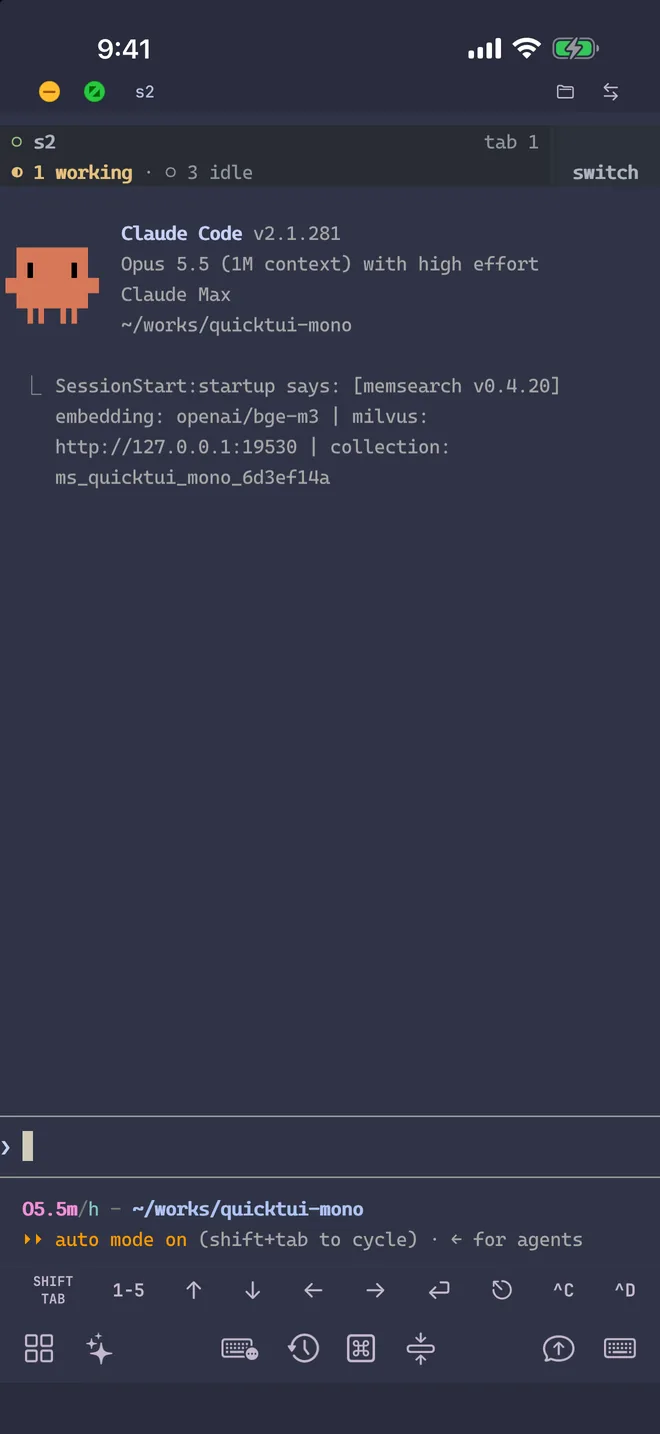
Terminal
Auto-reconnect, session restore, adaptive layout, fast input, easy copy and paste. Every detail is tuned for low-latency touch and terminal workflows.
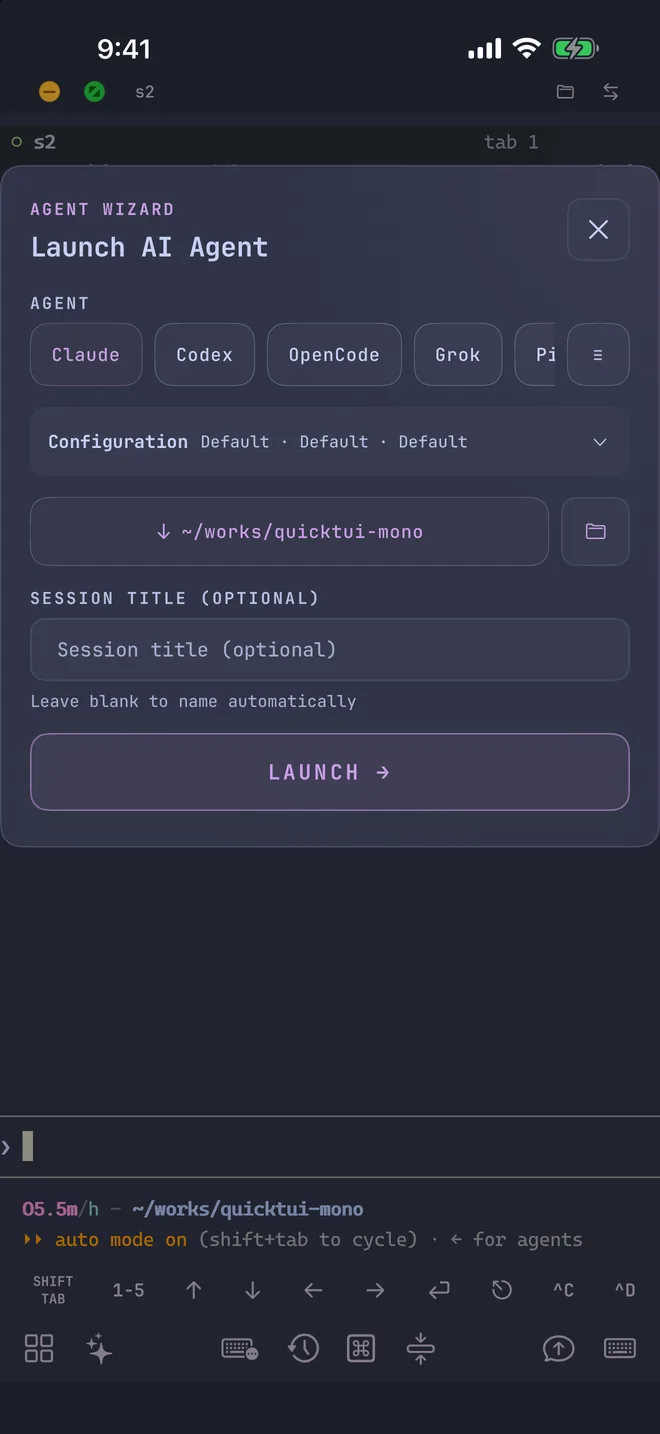
Agent Wizard
Launch any agent in seconds. No more typing flags to pick a model or reasoning level. Save your favorite setups in Settings and reuse them anytime.
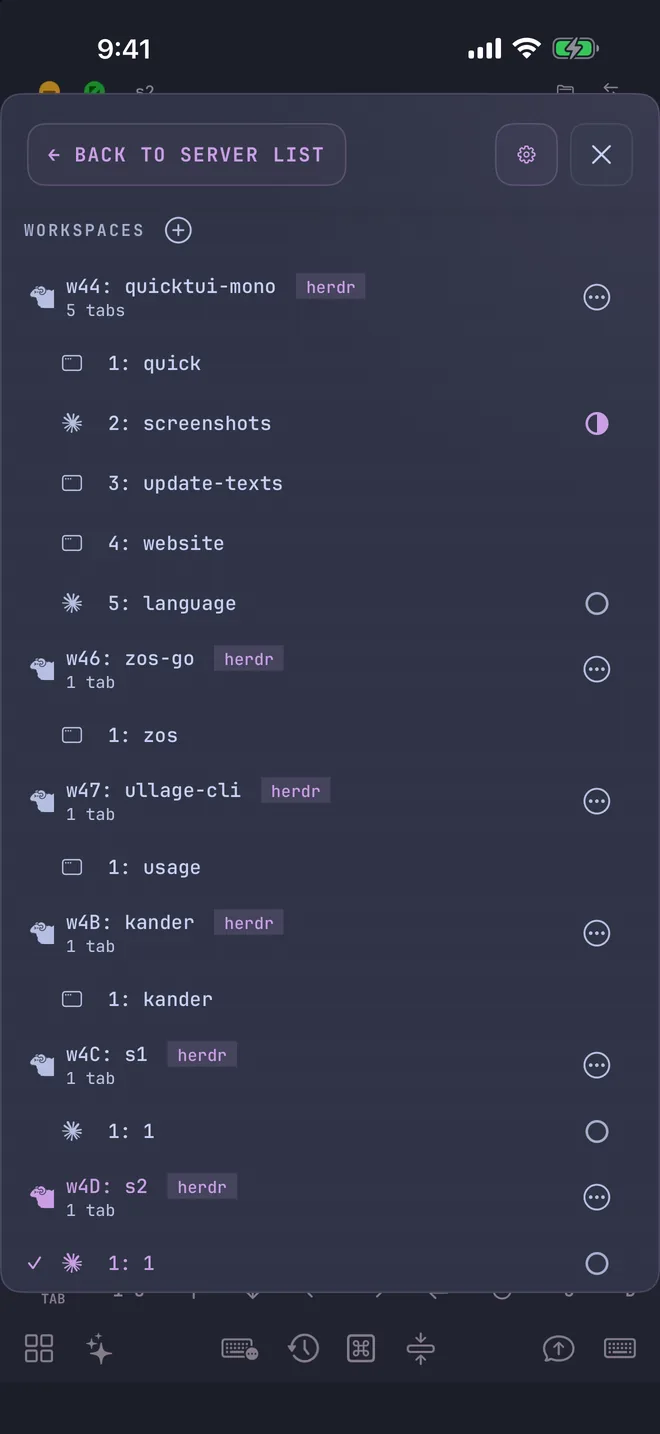
Session Manager
Every tmux and Herdr workspace and session on your computer, in one place. Jump between them instantly, and create, rename or close sessions right from your phone.
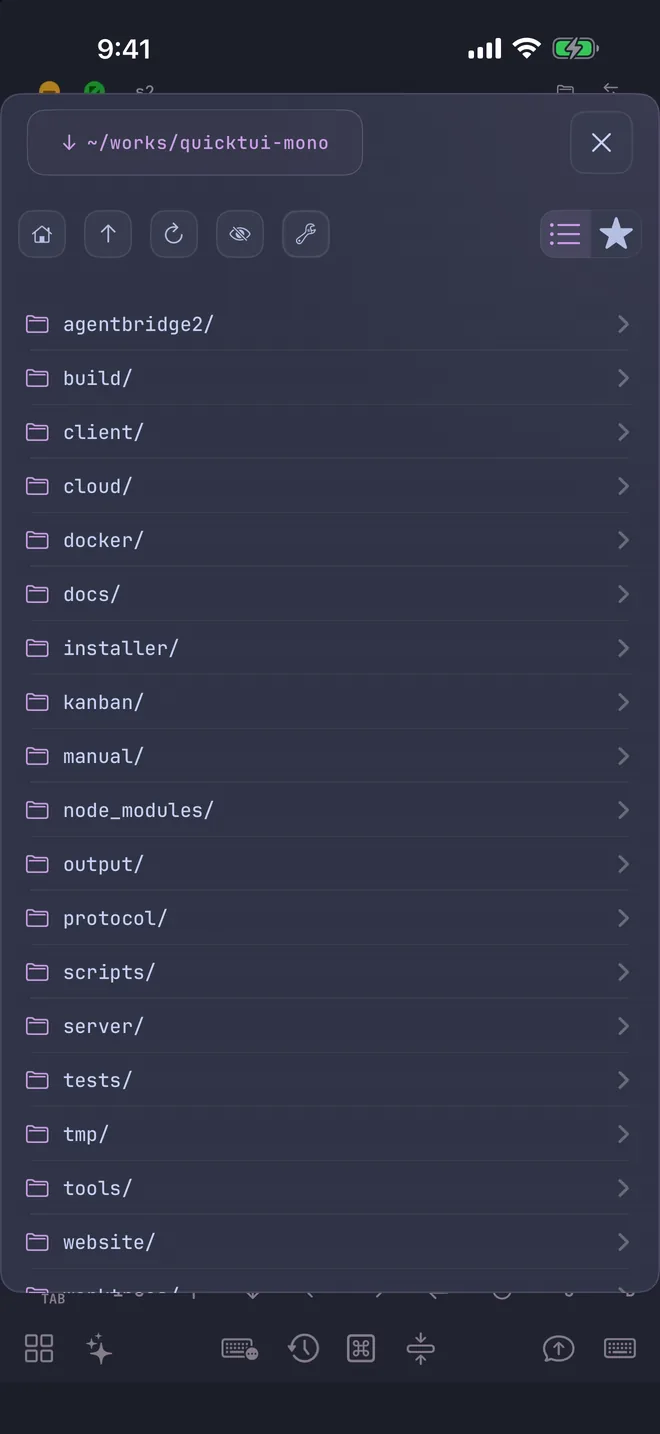
File Manager
Browse files on your computer and preview images, Markdown and code. Download files to your phone or upload them to your computer, all from the File Manager. Zip and unzip files, and bookmark favorite folders to jump between them fast.
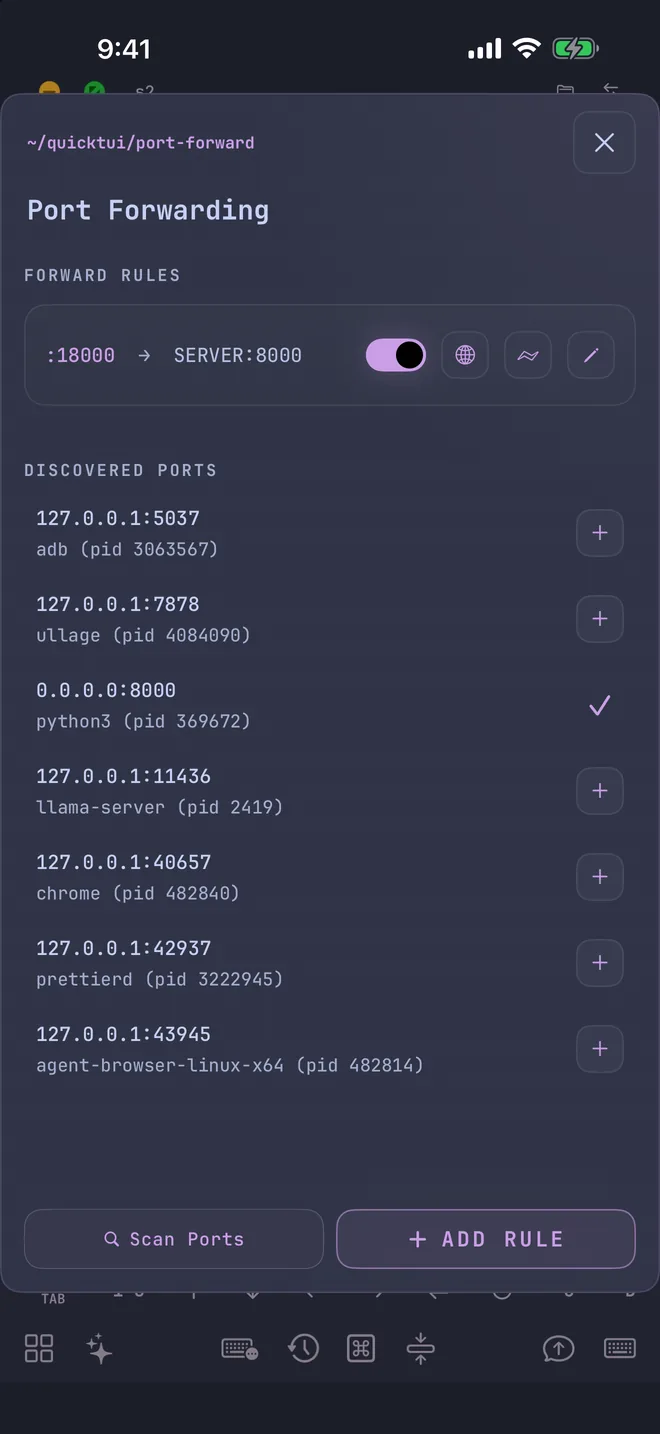
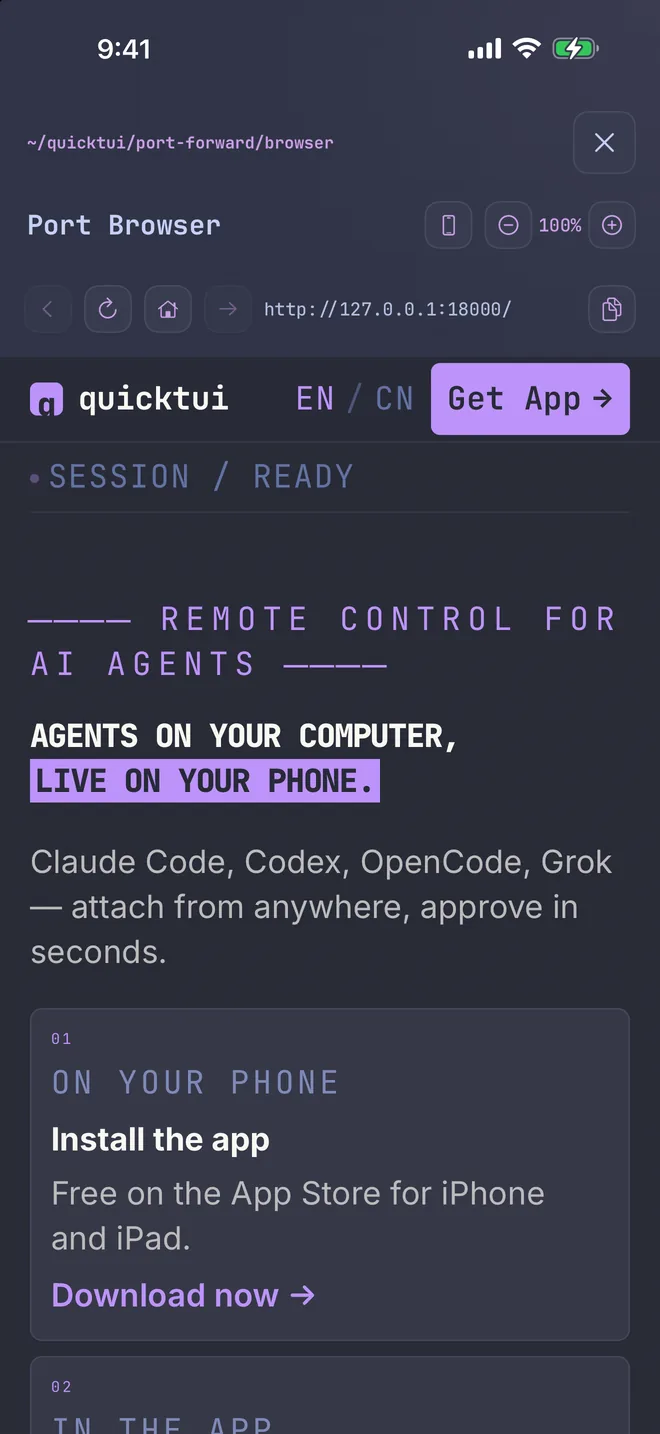
Port Forwarding
Automatically finds web servers and other open ports on your computer, and previews pages in the built-in browser. See your agent's changes the moment they land. No more laggy remote desktop apps.
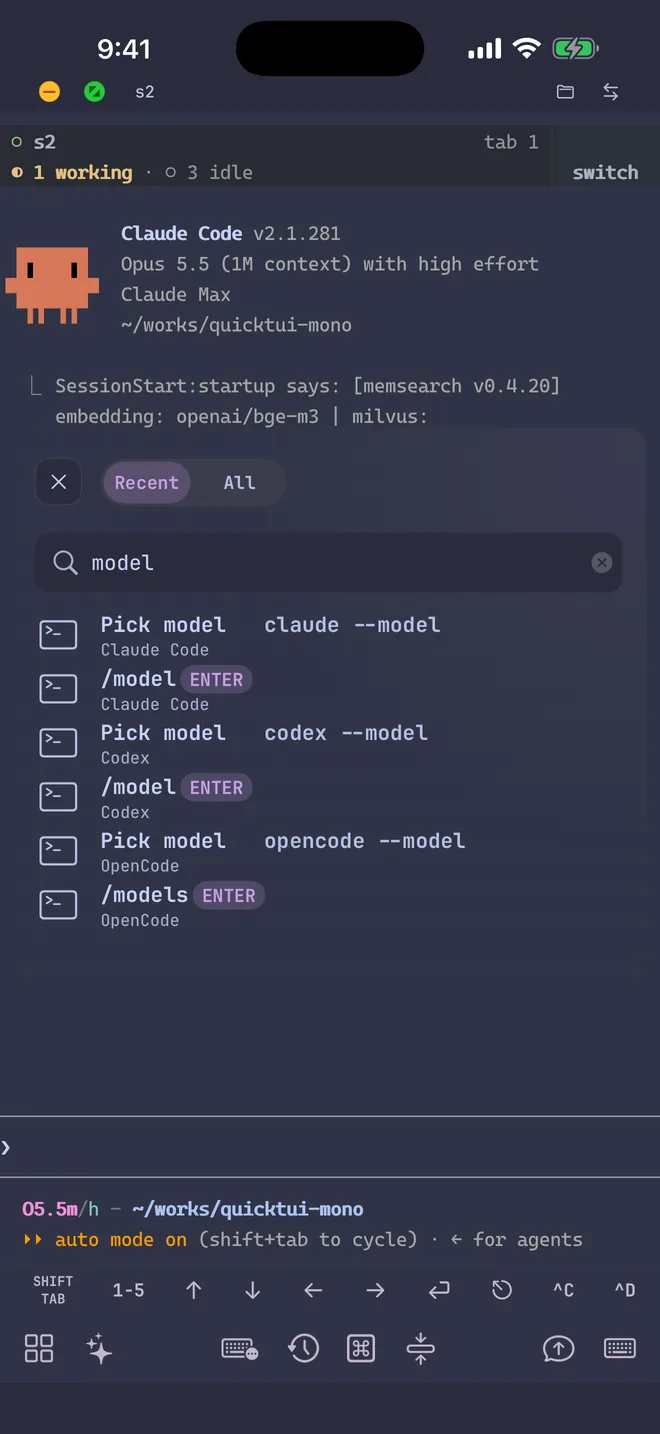
Command Palette
One place for commands across most agents and everyday terminal tasks. Skip the docs and send commands straight to your agent or terminal. 500+ commands and counting, updated automatically, and you can add your own in Settings.
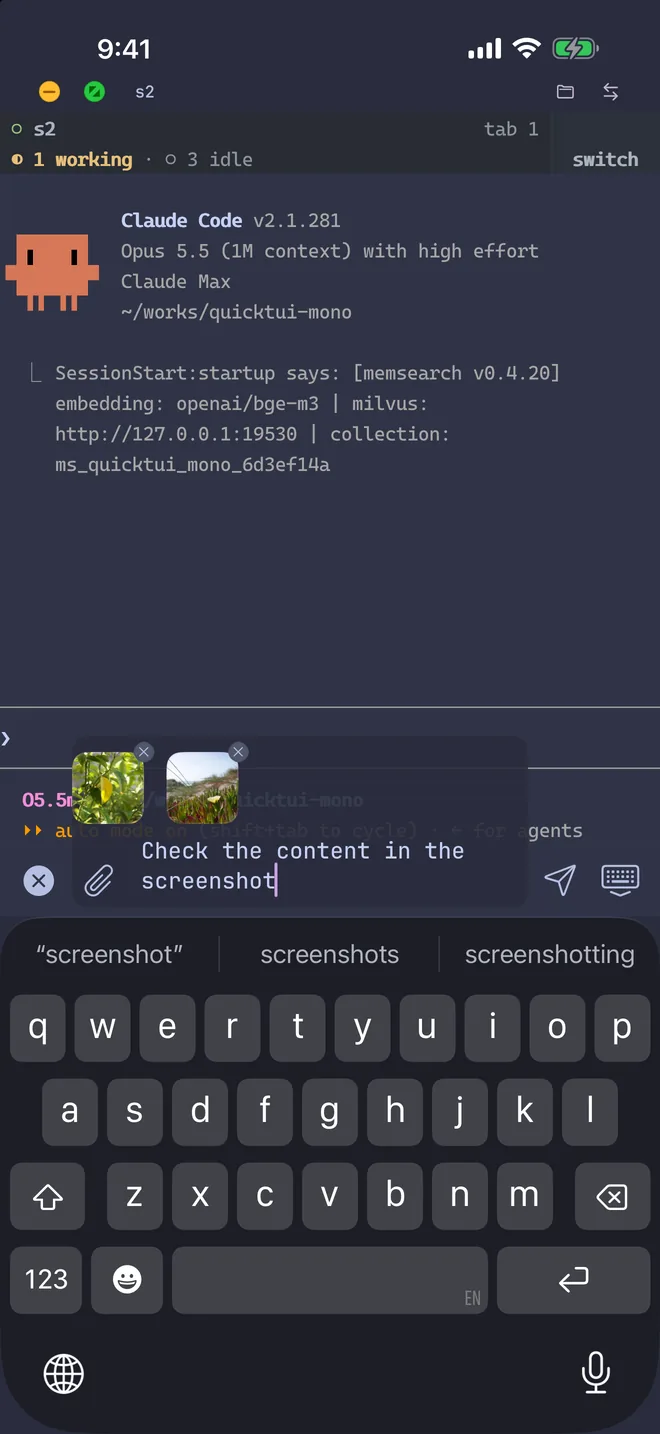
Input Bar
Dictate by voice, attach files, and review your message before sending it cleanly to the terminal.
Shortcuts Bar
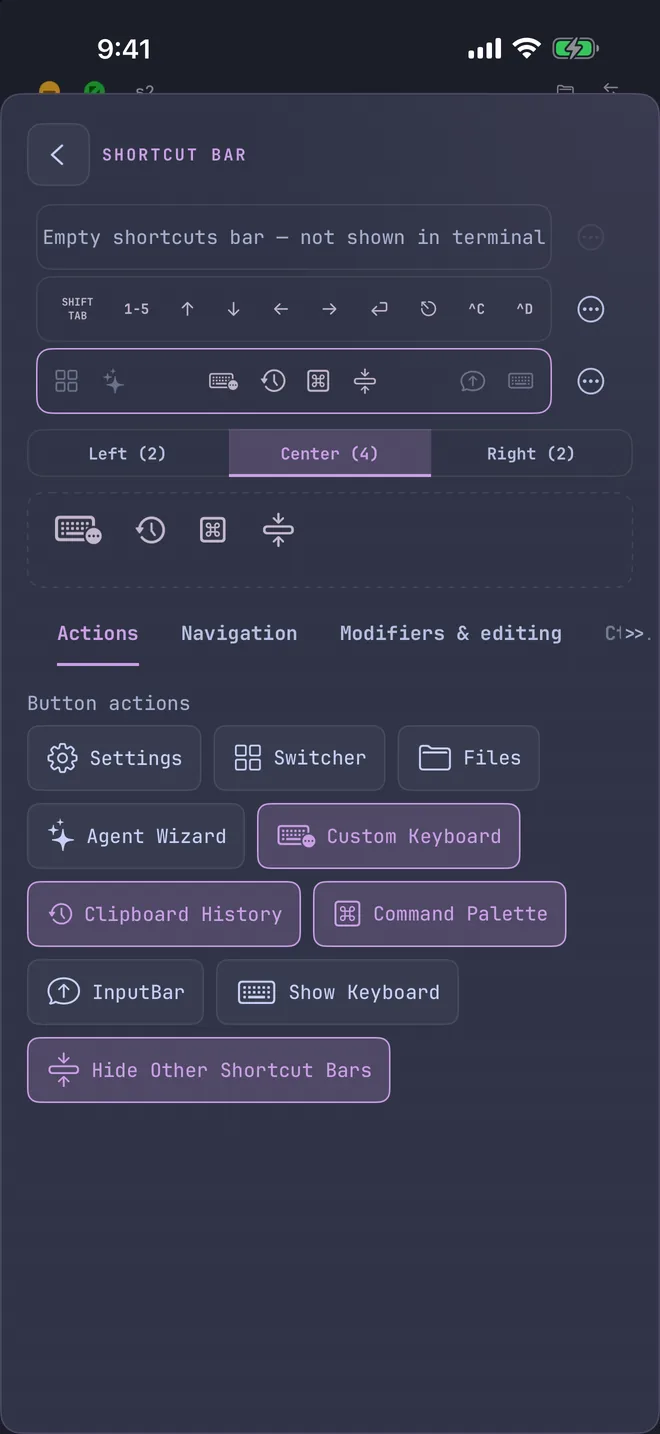
Stack up to three fully customizable Shortcuts Bars for high-frequency actions: running commands, sending key combos and opening app utilities.
Common questions.
The questions we hear most. Full docs live on the FAQ page.
Herdr and tmux both support multiple workspaces and keep sessions running in the background: as long as your computer doesn't restart, your agent sessions stay alive.
For most people we recommend Herdr: it integrates better with agents and performs better. If you already use tmux, QuickTUI fully supports it too.
# macOS / Linux
curl -fsSL https://herdr.dev/install.sh | sh

# Windows (PowerShell)
powershell -ExecutionPolicy Bypass -c "irm https://herdr.dev/install.ps1 | iex"
Full docs: herdr.dev/docs/install
Most Linux distributions include tmux in their package manager, and on macOS you can use Homebrew:
# Debian / Ubuntu
sudo apt install tmux

# Fedora
sudo dnf install tmux

# macOS (Homebrew)
brew install tmux
QuickTUI needs tmux 3.2 or later. For other systems, see the tmux install guide.
tmux doesn't support Windows; use Herdr there.
The install command upgrades the existing server in place: it replaces the QuickTUI server with the new version and restarts the service, and restores the previous version if the replacement fails.
Paired devices, the server identity and your settings (port, session backend and so on) are all kept, so there's no need to pair again.
Run the pairing guide on your computer:
# macOS / Linux
~/.local/bin/quicktui-server pairing welcome

# Linux (installed as root)
sudo /usr/local/bin/quicktui-server pairing welcome

# Windows (PowerShell)
quicktui-server pairing welcome
Choose how to show the QR code when the guide asks. A desktop browser is recommended; the terminal works too, but some terminal fonts make the code unreadable.
Once the QR code is up, in the app:
- On the server list, tap +.
- Choose Other ways to connect.
- Choose Scan a QR Code to Connect a Computer with Enhanced Features, then tap Next.
- Point the camera at the QR code to finish pairing.
Yes. Pick any way for your phone to reach your computer:
- QuickTUI Relay
- An optional subscription. Turn it on in the app, no network setup needed.
- VPN
- A private network such as Tailscale lets your phone reach your computer directly.
- Tunnel or reverse proxy
- For example, Cloudflare Tunnel or a reverse proxy with TLS. Point it at http://127.0.0.1:8022, then use the public HTTPS hostname in the app (without :8022).
Pairing codes, device sign-in and everything you do travel inside an end-to-end encrypted tunnel, so even if you open port 8022 directly, no one can read your traffic or pretend to be your computer. An open port does reveal that a QuickTUI server is running, its version and a few other details, and a flood of junk connections could keep your own devices from getting through. That's why we recommend one of the options above.
To pair through a tunnel or reverse proxy, update QuickTUI Server to the latest version, then generate a QR code with your public address:
# macOS / Linux
~/.local/bin/quicktui-server pairing qrcode --public-url https://your.domain

# Windows (PowerShell)
quicktui-server pairing qrcode --public-url https://your.domain
The tunnel or proxy must keep the original Host header and send X-Forwarded-Proto. Cloudflare Tunnel does both by default. If your proxy doesn't send that header, also update the QuickTUI app to the latest version.
Pairing QR codes expire quickly. Keep them private.
QuickTUI signs in devices through pairing, and everything is end-to-end encrypted:
- When you pair
- The pairing QR code holds a one-time pairing code and your computer's identity fingerprint. The code works once, expires in 15 minutes and only ever travels inside the encrypted channel. The app remembers your computer's identity and will only connect to that exact computer, so no one can impersonate it.
- Device keys
- Each phone creates its own key when it pairs. The private key stays in the system's secure storage (Secure Enclave or Keychain on iPhone, Android Keystore on Android) and never leaves the phone.
- Every connection
- The app first checks your computer's identity, then proves it's a paired device with its private key, and both sides agree on fresh encryption keys for that connection. Terminal, files, port forwarding and everything else are encrypted and protected against replay.
- Through Relay
- QuickTUI Relay only passes encrypted data along. It can't read it or impersonate either side. The one exception is push notifications: if you turn them on, Relay briefly sees the notification text as it delivers it.
- Revoking a device
- If a phone is lost or retired, revoke it on your computer:
# List paired devices
~/.local/bin/quicktui-server pairing devices list

# Revoke a device
~/.local/bin/quicktui-server pairing devices revoke <device-id>
A revoked device is disconnected within 5 minutes and can't connect again. On Windows, run the same commands in PowerShell, starting with quicktui-server.
First make sure the server is running:
# macOS
launchctl print gui/$(id -u)/ai.quicktui

# Linux
systemctl --user status quicktui

# Linux (installed as root)
systemctl status quicktui

# Windows (PowerShell)
Get-Process quicktui-server
If it isn't, restart it:
# macOS / Linux
~/.local/bin/quicktui-server service restart

# Linux (installed as root)
sudo systemctl restart quicktui

# Windows (PowerShell)
quicktui-server service restart
Still refused while it's running? Make sure your firewall, VPN or tunnel lets through the server port (8022 by default).
A regular-user install on Linux runs as a systemd user service, which follows your login session by default. When you close your SSH connection or sign out, the server may stop and your phone can no longer connect. Enable linger once to keep it running, with the command that fits your situation:
1. Enable it directly (when signed in locally, or when your user has permission):
loginctl enable-linger
2. Permission error (such as Access denied or Interactive authentication required, common over SSH). If you have sudo:
sudo loginctl enable-linger "$USER"
Without sudo, ask an administrator to run:
sudo loginctl enable-linger <your-username>
3. Failed to connect to bus. If you switched to the user with su or sudo -u, the session has no user bus: sign in as that user over SSH directly and run it again, or set the runtime directory and then enable it:
export XDG_RUNTIME_DIR=/run/user/$(id -u)
loginctl enable-linger
systemctl --user restart quicktui
If the system itself didn't boot with systemd (some containers, or WSL without systemd enabled), user services and linger aren't available. Install as root instead, or enable systemd first.
Check that it's on: the output should be Linger=yes.
loginctl show-user "$USER" --property=Linger
The server then starts at boot and keeps running whether or not you're signed in. Root installs use a system service and aren't affected.
Further reading
Deeper setup guides and product comparisons.
Install manually.
One command is all it takes.
On a Mac or Linux machine without SSH access, run one command on your computer to install QuickTUI Server. On Windows, get QuickTUI Server from Microsoft Store. Then scan a QR code in the app to pair. If your computer accepts SSH logins, the app's setup wizard does all of this for you.
Pair: run this on your computer, then follow the wizard to show the pairing QR code:
# macOS / Linux
~/.local/bin/quicktui-server pairing welcome

# Windows (PowerShell)
quicktui-server pairing welcome
Scan: in the app:
- On the server list, tap +.
- Choose Other ways to connect.
- Choose Scan a QR Code to Connect a Computer with Enhanced Features, then tap Next.
- Point the camera at the QR code to finish pairing.