Guide · tmux
How to attach a tmux session from your phone
Attach to your tmux sessions directly from iPhone, iPad, or Android (Preview) by connecting through QuickTUI Server. The app lists your active sessions, letting you resume long-running builds, agents, or shells with full window, pane, and scrollback fidelity.
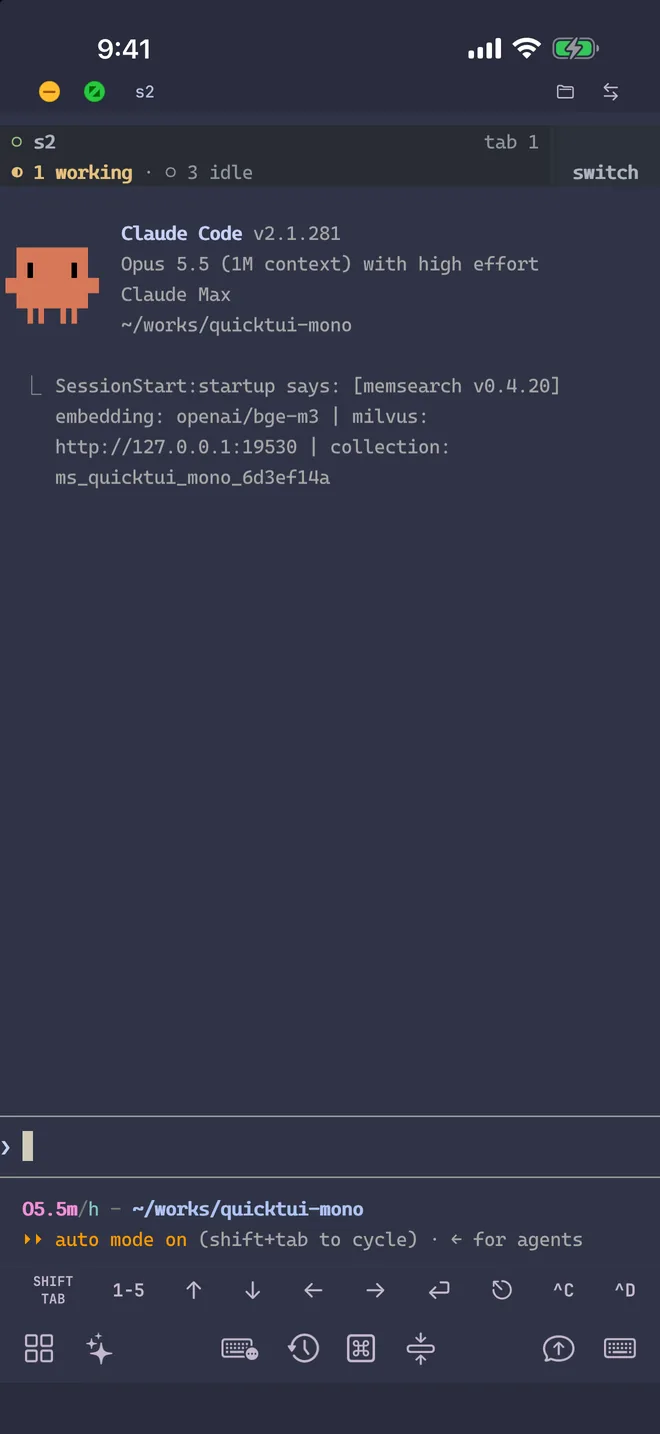
tmux keeps terminal sessions running on your computer after you disconnect, so builds, agents, log tails and shells stay alive. QuickTUI attaches to that real tmux instead of opening a separate shell, so whatever is running keeps running whether or not your phone is connected.
Get set up
- Install QuickTUI from the App Store, or install the Android app (Preview), and open the setup wizard.
- Choose Connect Over SSH — Enable Enhanced Features (Recommended) and enter the SSH login of the Mac or Linux computer running tmux.
- Tap Install. The app installs the QuickTUI server over SSH and pairs automatically.
On a computer without SSH access, run the install command on the computer, then pair by scanning a QR code:
curl -fsSL https://quicktui.ai/q.sh | shQuickTUI needs tmux 3.2 or later. The installer uses the tmux you already have and doesn't install or change it; see how to install tmux. Traffic between your phone and your computer is end-to-end encrypted, and the app connects directly to your computer by default.
Attach, reconnect and create sessions
- Attach to a running session
- Your tmux sessions appear as workspaces in the Session Manager. Tap one to open its live view, including windows, panes and scrollback.
- Seamless reconnection
- Sessions persist on your host machine. Switching networks, backgrounding the app, or intermittent packet loss triggers automatic reconnection directly to your active session.
- Create a session
- Tap [+] in the Session Manager to create a workspace, or run
tmux new -s workon your computer. The new session shows up in the list. - Run tmux commands quickly
- The command palette includes a ready-made tmux group, so common commands are a tap away instead of a key sequence.
Name your sessions: tmux attach -t claude
Named sessions are the easiest to find on a phone. Start an agent in a session called claude:
tmux new -s claude
claude
At your desk, tmux attach -t claude opens that session. In the app, it appears as the claude workspace, and tapping it opens the same session. Name one session per task or repository, such as tmux new -s review, and switch between them from the list. For a full walkthrough, see running Claude Code from your iPhone.
Scrollback with full-screen agents
Some agents, including Claude Code and Codex, can draw their interface in the terminal's main screen, which fills tmux scrollback with repeated output. When the server detects this, the app shows a hint explaining how to switch the agent to its full-screen mode. For Claude Code, run /tui fullscreen; the FAQ covers Codex, Grok Build and Pi as well.
tmux or Herdr?
tmux is a good fit if you already use it. If you mainly run AI agents, consider Herdr: the Session Manager then shows whether each agent is idle, working, waiting for input or done. The two can run side by side, and the installer sets up Herdr automatically when a computer has neither.
FAQ
Can I attach to a tmux session from my iPhone?
Yes. Install the QuickTUI server on the computer running tmux, pair the app, and your tmux sessions appear as workspaces. Tap one to attach to the live session. The same works on iPad and on Android (Preview).
Does the tmux session keep running when I close the app?
Yes. The session lives on your computer, not on the phone. Close the app, lose signal or switch networks, and the session keeps running; reopening the app takes you back to it.
Which tmux version do I need?
tmux 3.2 or later. The installer uses your existing tmux and never installs or upgrades it. If your computer has neither tmux nor Herdr, it installs Herdr instead.
Does the app connect over SSH?
No. SSH is used once by the setup wizard to install the server; after that, the app connects to the QuickTUI server with end-to-end encryption. On computers without SSH access, install the server with one command and pair by QR code.