Guide · ZCode
Run ZCode from your phone
ZCode's terminal CLI runs on your computer, so you can drive it from your phone through a live terminal. Start zcode in a tmux session and QuickTUI opens it on iPhone, iPad or Android, end-to-end encrypted, next to any other agents you run.
What is ZCode?
ZCode is Z.ai's (Zhipu) AI coding workbench and the official harness for its GLM models. It's mainly a desktop app for macOS, Windows and Linux, and it's open source under Apache 2.0 (zai-org/ZCode). The repository also contains a command-line edition, started with zcode: with no arguments it opens a terminal interface (TUI), and zcode --web starts a browser interface.
Getting the zcode command. ZCode's official downloads are desktop installers. The command-line edition is built from the open-source repository with pnpm build:zcode, which produces a package and an install script that places zcode in ~/.local/bin; running it requires Node.js. Follow the build steps in the repository README. Sign in to ZCode with a Z.ai or BigModel account, or use an API key.
Set up QuickTUI
- Install QuickTUI on your phone: from the App Store for iPhone and iPad, or the Android app (Preview).
- In the app's setup wizard, choose Connect Over SSH — Enable Enhanced Features (Recommended), enter the SSH login of the computer where ZCode is installed and tap Install. The app installs the QuickTUI server and pairs automatically. If the computer has neither tmux nor Herdr, it installs Herdr.
On Windows, or on a computer without SSH access, run the install command on the computer, then pair by scanning a QR code:
# macOS / Linux
curl -fsSL https://quicktui.ai/q.sh | sh -s -- install --channel server2

# Windows (PowerShell)
& ([scriptblock]::Create((irm https://quicktui.ai/q.ps1))) install --channel server2
The connection between your phone and your computer is end-to-end encrypted and direct by default. See the install guide for details.
Start ZCode from your phone
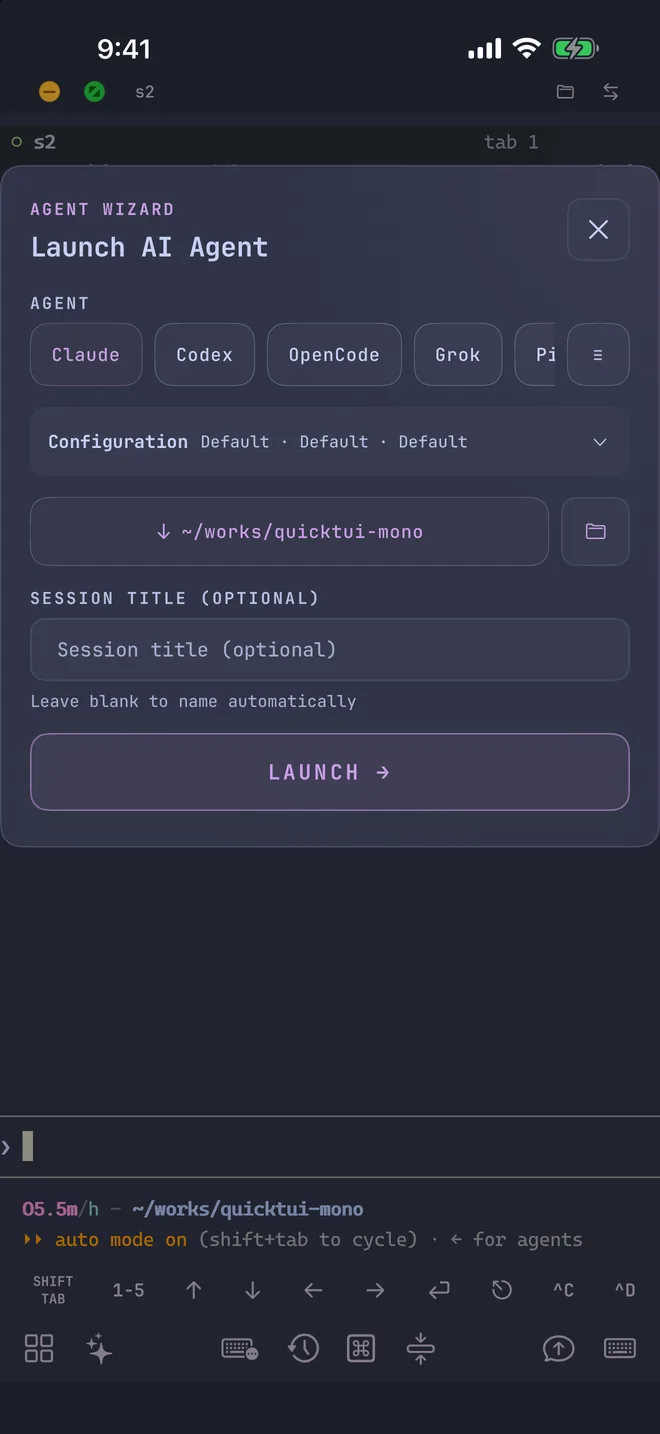
Open the Agent Wizard in the app, choose ZCode, and QuickTUI starts it in a new window of the current tmux session. The wizard can start ZCode only on the tmux backend; in a Herdr workspace, open a new tab and type zcode yourself.
- Mode
- Build, Edit, Plan or YOLO, passed with
--mode. - Model
- Chosen inside ZCode after it starts.
- Resume
- Continue an earlier session with
--resume. - Working directory
- Pick the project folder, with recently used folders one tap away. Save frequent combinations as presets.
You can also start it yourself on the computer, in a named tmux session you can find later in the app:
tmux new-session -s zcode
zcode
Tips for ZCode on a phone
- Send screenshots
- Attach a file, image or camera photo from the Input Bar. It's uploaded to your computer (up to 10 MiB) and its path is inserted, so ZCode can read it.
- Run it next to other agents
- Give each agent its own tmux window or session, such as ZCode for one task and Claude Code or Kimi Code for another, and switch between them in the app.
- No live status
- Herdr doesn't report ZCode's status, so the Session Manager shows no idle or working state for it. Open the session to see where it stands.
ZCode Remote Control vs QuickTUI
The ZCode desktop app has its own Remote Control. It shows a QR code and a link (or connects through a Bot Channel), and your phone then controls the desktop window: you can browse its workspaces and tasks and keep sending instructions to the agent. Commands still run on the machine each workspace is connected to.
QuickTUI covers a different setup. It connects to the terminal on your computer, so it works with ZCode's command-line edition rather than the desktop app, and you can run other CLI agents in the same place. The connection is end-to-end encrypted and direct by default, and sessions live in tmux, so the desktop app doesn't need to stay open. If you work in the ZCode desktop app, its Remote Control is the natural choice; if you run agents in a terminal, QuickTUI fits better.
FAQ
Can I control the ZCode desktop app with QuickTUI?
No. QuickTUI connects to terminal sessions, so it works with ZCode's zcode command-line edition. For the desktop app, use ZCode's built-in Remote Control.
Is there an official installer for the zcode command?
ZCode's published downloads are desktop installers. The command-line edition is built from the open-source repository, which generates its own install script. See the build steps in the ZCode README.
Why can't the Agent Wizard start ZCode in Herdr?
Herdr only launches agents it recognizes, and ZCode isn't one of them. Use the tmux backend with the Agent Wizard, or type zcode in a Herdr tab.
Does ZCode keep running when I close the app?
Yes. It runs in a tmux session on your computer and keeps working after you close the app. Reopening the app takes you back to the live session.