Guide · OpenCode
Run OpenCode from your phone: iPhone, iPad and Android
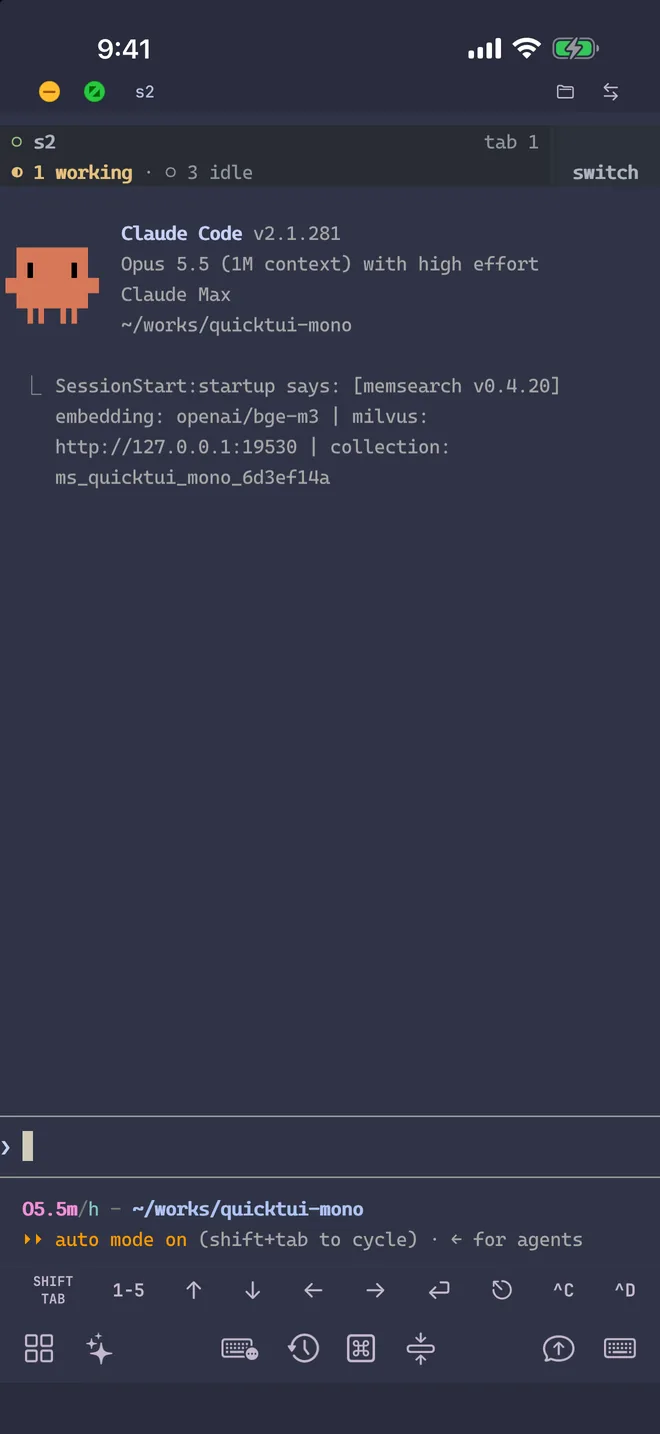
To use OpenCode on mobile, run it on your computer and open its terminal UI from your phone with QuickTUI. You work in the real OpenCode TUI on iPhone, iPad or Android, and OpenCode keeps running on your computer when you put the phone down.
What is OpenCode?
OpenCode is an open-source AI coding agent for the terminal, published by Anomaly under the MIT license (anomalyco/opencode, formerly sst/opencode). It works with many model providers, including local models, and runs as a full-screen terminal UI.
Set up OpenCode and QuickTUI
- Install OpenCode on the computer where it should run, using any of the official methods:
On Windows, install it with Chocolatey, Scoop or npm; OpenCode recommends WSL.# macOS / Linux curl -fsSL https://opencode.ai/install | bash # npm npm install -g opencode-ai # Homebrew brew install anomalyco/tap/opencode - Run
opencodeand connect a provider with/connect, or runopencode auth login. - Install QuickTUI on your phone: from the App Store for iPhone and iPad, or the Android (Preview) build.
- In the app's setup wizard, choose Connect Over SSH — Enable Enhanced Features (Recommended), enter the computer's SSH login and tap Install. The app installs the QuickTUI server and pairs automatically. If the computer has neither tmux nor Herdr, it installs Herdr.
On Windows, or on a computer without SSH access, run the install command on the computer, then pair by scanning a QR code:
# macOS / Linux
curl -fsSL https://quicktui.ai/q.sh | sh -s -- install --channel server2

# Windows (PowerShell)
& ([scriptblock]::Create((irm https://quicktui.ai/q.ps1))) install --channel server2
The connection between your phone and your computer is end-to-end encrypted and direct by default. See the install guide for details.
Start OpenCode from your phone
Open the Agent Wizard in the app, choose OpenCode, and QuickTUI starts it in a new window of the current tmux session or a new tab of the current Herdr workspace. The wizard isn't available on the Luvus backend.
- Mode
- Default keeps OpenCode's permission prompts. YOLO adds
--auto, so it proceeds without asking; use it only in a repository you're prepared to let it change. - Model
- One of the models in OpenCode's built-in list, passed with
--model. Add your own under Settings > Agent Models. - Resume
- Continue an earlier session with
--session. Resume isn't available when the workspace runs on Herdr. - Working directory
- Pick the project folder, with recently used folders one tap away. Save frequent combinations as presets.
You can also start it yourself on the computer, in a named tmux session you can find later in the app:
tmux new-session -s opencode
opencode
Tips for OpenCode on a phone
- Mouse capture
- OpenCode captures the mouse by default. If you'd rather select text with the terminal's own selection, set
"mouse": falsein OpenCode's config. - Send screenshots
- Attach a file, image or camera photo from the Input Bar. It's uploaded to your computer (up to 10 MiB) and its path is inserted, so OpenCode can read it.
- Common commands in one tap
- The command palette includes an OpenCode group with its frequently used commands, so you don't have to type them on a phone keyboard.
- See which session needs you
- With Herdr, the Session Manager marks each OpenCode session with its icon and shows whether it's idle, working, waiting for input or done.
OpenCode web vs QuickTUI
OpenCode also has its own browser interface: opencode web serves it on a port of your computer, and you can open it from a phone browser once that port is reachable from your network. QuickTUI takes a different route: it attaches to the OpenCode terminal UI through its own end-to-end encrypted connection, so you don't need to expose a port, and the same app also gives you your other terminal sessions and agents.
FAQ
Is there an OpenCode mobile app?
OpenCode itself runs on your computer. With QuickTUI you can use it from an iPhone, iPad or Android phone; you can also open OpenCode's own web interface in a phone browser.
Does OpenCode keep running when I close the app?
Yes. It runs in a tmux or Herdr session on your computer and keeps going after you close the app. Reopen the app to return to the live session.
Can I run OpenCode next to Claude Code or Codex?
Yes. Run each agent in its own window, tab or session and switch between them in the app.
Does my code go through QuickTUI's servers?
No. By default the app connects directly to your computer, end-to-end encrypted. OpenCode itself talks to the model provider you configured.